Key Takeaways
- ✓WCAG 2.2 Level AA is the working standard: Section 508 incorporates WCAG AA by reference, and Department of Justice guidance points businesses to WCAG as the benchmark for accessible web content.
- ✓Work in the order patients do: keyboard access and visible focus first, then contrast and text resizing, then plain language, alt text and captions, and finally labelled forms and a booking flow that survives a deliberate mistake.
- ✓No tool or overlay can certify your site. The W3C states that no automated tool alone can determine whether a site meets the guidelines. Knowledgeable human checking is what counts.
- ✓Most failures split cleanly in two: content fixes your team can make today (alt text, headings, captions, plain language) and template or code fixes for a developer (keyboard traps, menus, form behaviour).
- ✓Accessibility decays one upload at a time. A short publishing habit list, alt text on new images, captions on new video, one keyboard pass on new widgets, keeps the hour's work from unravelling.
Short answer first: in about an hour, with a keyboard, a phone, and your browser's zoom, you can find most of the accessibility problems that stop patients using your website. This healthcare website accessibility checklist walks you through that hour, grouped by what a patient is trying to do: get in the door, read the page, understand it, and complete a task like booking.
One honest limit before you start. A checklist is a starting point, not a certificate. It surfaces the barriers patients hit most often and shows which fixes are content edits and which need a developer. It cannot prove your site conforms to WCAG. Anyone who sells you that promise in an afternoon is selling paper, not accessibility.
What WCAG 2.2 AA and the ADA Actually Ask For
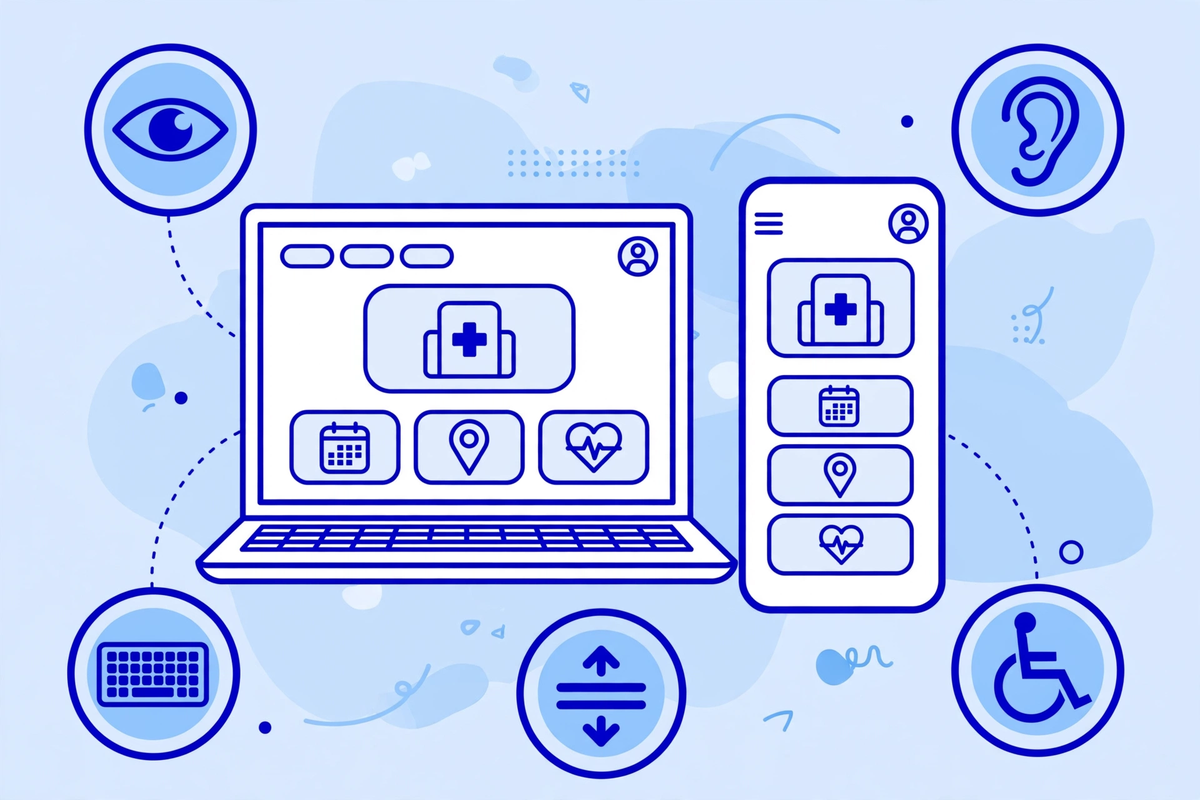
WCAG, the Web Content Accessibility Guidelines, is the technical standard published by the W3C's Web Accessibility Initiative. Its introduction to web accessibility is the plainest official explanation of the territory: sight, hearing, movement, speech, and cognitive ability, plus everyday situations, ageing eyes, a broken arm, bright sunlight, where the same design choices decide whether a page works.
WCAG comes in three levels: A, AA, and AAA. Level AA is the working target almost everyone builds to: it covers the barriers that lock people out entirely, without AAA's stricter enhancements. Version 2.2 is the current W3C recommendation. It keeps the earlier criteria and adds a few, including a visible focus appearance and a minimum size for clickable targets. A site built to 2.2 AA satisfies the earlier versions in practice.
How the law points at WCAG, in plain terms. Section 508, the federal accessibility law for government technology, incorporates the WCAG AA criteria by reference. The Americans with Disabilities Act covers private medical practices as places of public accommodation, and Department of Justice guidance for businesses points to WCAG as the technical benchmark for accessible web content. No government checklist certifies a private clinic's website. WCAG is simply the standard every route leads back to.
One more W3C point worth printing out: no automated tool, on its own, can determine whether a site meets the guidelines. Tools find some problems quickly. Deciding whether a page is genuinely usable takes a person working through it, which is what the next four sections ask you to do. This article is practical guidance, not legal advice. A specific demand or complaint is a conversation for your attorney.
Before You Start: What You Need
- A laptop or desktop with your usual browser, and your phone. You will check the site the way patients meet it, big screen and small.
- Your mouse, pushed to one side. In the first section you navigate by keyboard only: Tab forward, Shift+Tab back, Enter and Space to activate.
- Your browser's zoom (Ctrl or Cmd and +) and your system's built-in screen reader, VoiceOver on Apple devices, Narrator on Windows, even if only for five minutes.
- A notebook. For every failure, write down the page, what you were trying to do, and what stopped you. That note is what a developer needs later.
- Pick the five pages patients use most: homepage, main services page, provider or location page, booking or request page, and contact page. One hour covers those five honestly. It does not cover the whole site.
Checklist Part 1: Getting in the Door: Keyboard and Focus
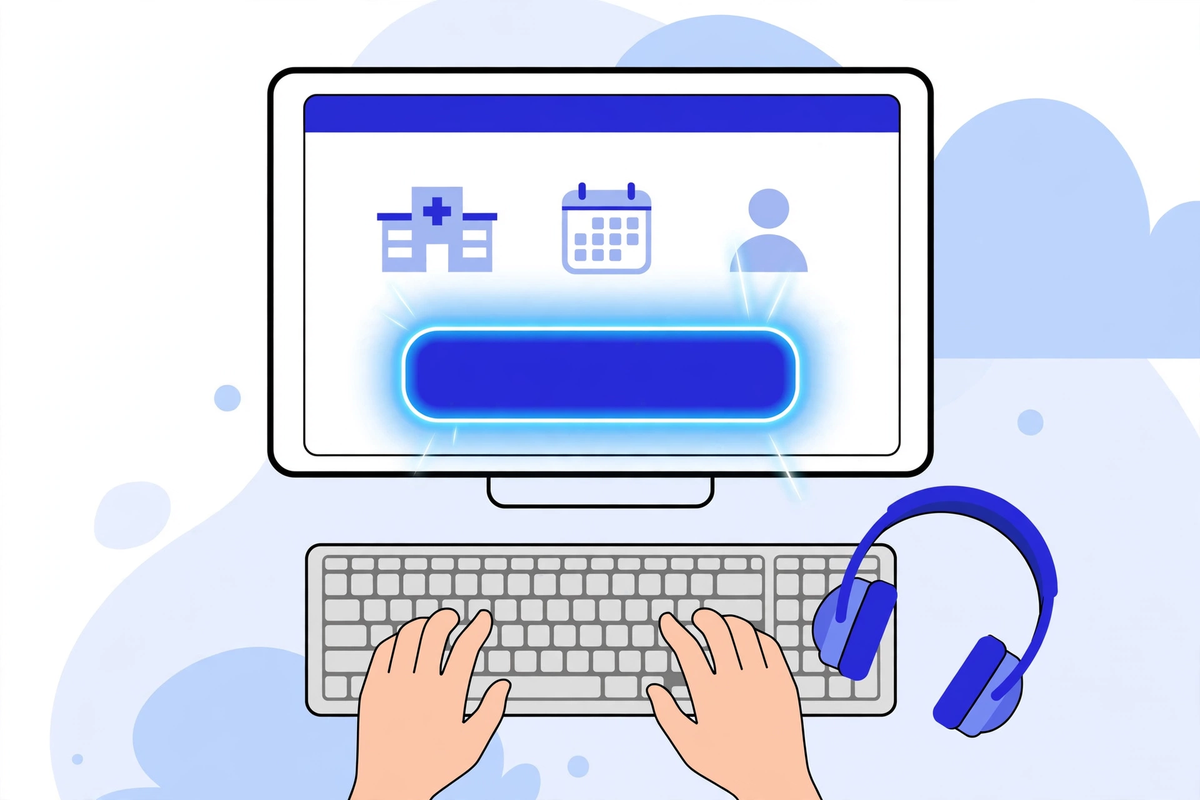
Some patients do not use a mouse at all. They navigate with a keyboard, a switch device, or voice control, and every one of those tools depends on the same thing: the site must respond to the keyboard in a sensible order, and the patient must be able to see where they are. Put your mouse in a drawer and start at your homepage.
- Tab through the whole page. A visible outline should move from link to link in reading order. You should always know where you are, and nothing clickable should be skipped. It fails when the outline is invisible, jumps randomly, or never reaches the menu or booking button.
- Open every menu and pop-up with the keyboard alone, then close it with Escape. Chat widgets and cookie banners are the usual traps. A keyboard trap, Tab goes in but cannot get out, is a complete blocker. Send it to a developer the same day.
- Activate everything with Enter or Space: links, buttons, accordions, tabs. If an element looks clickable but the keyboard cannot reach or trigger it, it does not exist for a keyboard user.
- Repeat the visit on your phone. Tap targets should be comfortably tappable without zooming, not packed so tightly the wrong one fires. WCAG 2.2 sets a minimum target size at AA for most controls.
Most failures here live in code and templates, not your text. Log them precisely. The same header, menu, and footer repeat site-wide, so one developer fix usually repairs every page at once.
Checklist Part 2: Reading the Page: Contrast, Text, and Structure
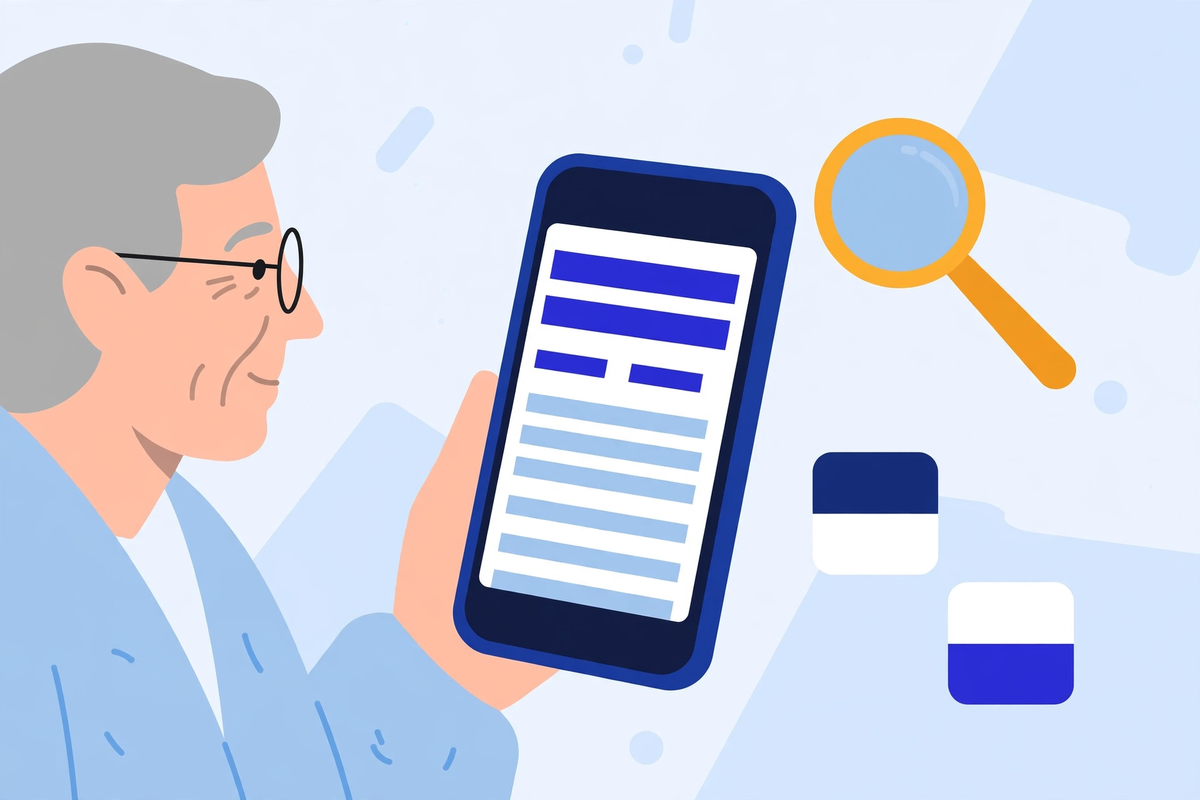
- Find your palest text. Light grey on white is the classic. Body text needs a contrast ratio of at least 4.5 to 1 against its background at AA, large headings at least 3 to 1. Free contrast checkers take two colour codes and return the ratio. Elegant grey text is the most common failure on clinic sites.
- Zoom your browser to 200% and re-read a services page. Text should grow, reflow into one column, and stay usable, nothing cut off, no sideways scrolling. Then pinch-zoom on your phone: a page that blocks zooming blocks low-vision patients entirely.
- Check that colour is never the only signal. Red text for a closed day, a green banner for a confirmation, a red asterisk for a required field. Each needs words as well. Read the page imagining you cannot distinguish its colours. Anything that stops making sense fails.
- Read only the headings, top to bottom. Headings are the map screen readers announce and the outline skimming patients use. Good looks like a contents list that tells the story in order: one main heading per page, no skipped levels.
- Follow your links reading only the link text. 'Click here', 'read more', and identical 'Book now' links under different doctors all fail the same way: out of context they say nothing. Link text should name its destination.
- Look for text baked into images: flu-clinic banners, flyers uploaded as pictures, insurance lists as screenshots. None of it enlarges, translates, or reads aloud properly. If the words matter, they belong on the page as text.
Checklist Part 3: Understanding It: Words, Images, and Media
- Read a patient instruction page aloud, pre-visit preparation, aftercare, insurance steps. If a sentence needs a second read, it needs a rewrite. Plain language is an accessibility feature: short sentences, the words patients use ('blood test', not only 'phlebotomy'), one instruction per line for anything done in steps.
- Check the alternative text on meaningful images. A screen reader should announce what the image adds: who the doctor is, what the diagram shows. Decorative images should be silent. Classic failures: alt text that says 'image', repeats the filename, or is missing on photos of your team.
- Play any video with the sound off. Captions should carry the full spoken content, and anything the video explains, how to prepare, where to park, should also exist as text on the page. A transcript is the simplest version and the easiest to add later.
- Open your downloadable forms. Patient forms are often PDFs, and a scanned or untagged PDF is a blank page to a screen reader. If a form only exists as an inaccessible PDF, offer the same content another way, a web page, or completion by phone with your team.
- Confirm the basics are findable in words, not just icons: phone number, address, hours, and the booking route should be readable text, not only a pin icon or map image.
Most fixes in the reading and understanding sections are content edits your own team can make without a developer. The overlap with ordinary patient experience is covered in our companion guide to healthcare UX design.
Checklist Part 4: Completing the Task: Forms and Booking
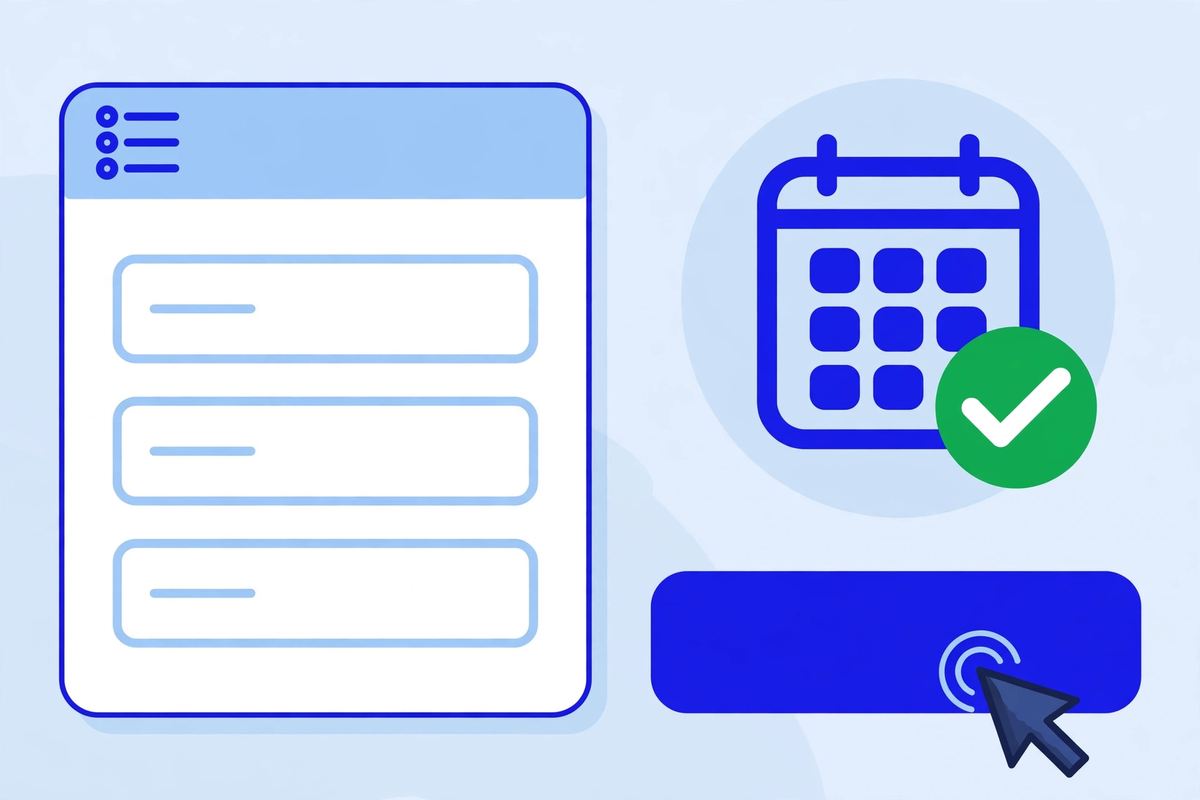
This section decides whether the first three mattered. A patient who can reach your booking form but cannot finish it has still been turned away. Run the whole task twice: once by keyboard alone, once on your phone.
- Every field has a visible label that stays on screen, not placeholder text that vanishes as you type. 'Date of birth (MM/DD/YYYY)' as a label passes. A disappearing grey hint fails the patient who returns to check an entry.
- Required fields are marked in words, or with a symbol explained in text, never by colour alone. And remember: general contact forms are for enquiries, so do not ask for health details in them.
- Deliberately make a mistake: skip a required field, enter a bad email address, submit. Good looks like an error message in words naming each problem, focus moved to it, and your correct entries preserved. A form that just turns a box red, or clears everything, fails.
- Complete the booking flow end to end by keyboard, including any calendar or time-slot picker. The widget is where the whole journey most often collapses. Then check the confirmation: it must be perceivable in words, not just a green flash or a pop-up that vanishes before a screen reader reaches it.
- Finally, confirm there is always another door. A working phone number, staffed in the hours the site claims, is an accessibility feature. No patient should face a website form as the only way to reach a practice.
To practise the keyboard method first, work through a booking flow in our interactive healthcare demos using Tab alone. The failures feel familiar within minutes, and that familiarity is the point.
What This Check Cannot Tell You, and When to Call a Developer
An hour of honest checking finds the common barriers, not everything. Screen-reader testing done well, listening to a whole journey in JAWS, NVDA, or VoiceOver and judging whether it makes sense, not just whether it speaks, takes practice. That is why the W3C's position is that knowledgeable human evaluation, not a tool score, establishes accessibility.
- Call a developer when a failure repeats on every page (header, menu, footer, cookie banner), when a keyboard trap exists anywhere, or when the booking journey fails. Those are code problems, usually fixed once, centrally.
- Bring in a specialist audit when you are rebuilding the site, when a partner or payer asks for an accessibility conformance report, or when you receive a complaint or legal letter. The deliverable then is a documented audit and remediation plan, not a checklist.
- Ask any vendor, booking, chat, maps, portal, one question before you renew: which WCAG version and level does the product meet, and where is it documented? An embedded widget is part of your patient's experience.
- If you are commissioning new work, put the standard in the brief and the acceptance tests. This is how [websites built to WCAG 2.2 AA guidelines](/services/healthcare-websites) are scoped at Med Clinic X: accessibility as a build requirement checked before launch, not a coat of paint afterwards.
Keeping It Accessible After the Check
Most accessibility decay arrives one upload at a time: a photo with no alt text, a flyer saved as an image, a video without captions, a booking widget nobody keyboard-tested. The fix is a short habit list attached to whoever updates the site.
- Every new image gets alt text, or a deliberate decision that it is decorative, before the page is saved.
- Every new document is published as an accessible file or as a web page. Scanned PDFs do not go up.
- Every new video gets captions, and every new widget or form gets one keyboard pass before it goes live.
- Re-run this checklist after any redesign or platform change, and once a year otherwise. Note the date and findings. The record itself shows diligence.
- Publish a short accessibility statement with a working contact route for reporting barriers, and treat every report as a free expert test, answered by a person.
Budget honestly for this upkeep. As our guide to healthcare website development cost sets out, a modest amount of attention at build time and in routine updates costs a fraction of a remediation project after a complaint.
Your website never sleeps, never takes lunch, and meets every patient, including the ones using a keyboard, a screen reader, a magnifier, or a cracked phone screen in bright daylight. An hour with this checklist tells you more about how your practice treats those patients than any audit score. If it turns up code-level problems, or you would rather start from a site built to the standard, request a scoped quote and we will talk through what your pages need.
Written by Chloe Vance
Healthcare Marketing DirectorChloe Vance has led search engine optimization and digital patient acquisition strategies for top pediatric, dental, and multi-specialty clinical chains.
Frequently Asked Questions
Common conversational queries evaluated by our natural language models concerning deployment guidelines.